Documentation

Your console: the tour

Getting started · Updated on 07 September 2026

Everything on your site is edited from one place: /cms/ on your own address — for example https://yourname.names.legal/cms/. Sign in with the account created when you subscribed, and bookmark that page. There is no second admin, no separate app, no plugin to install.

Where you land: the dashboard
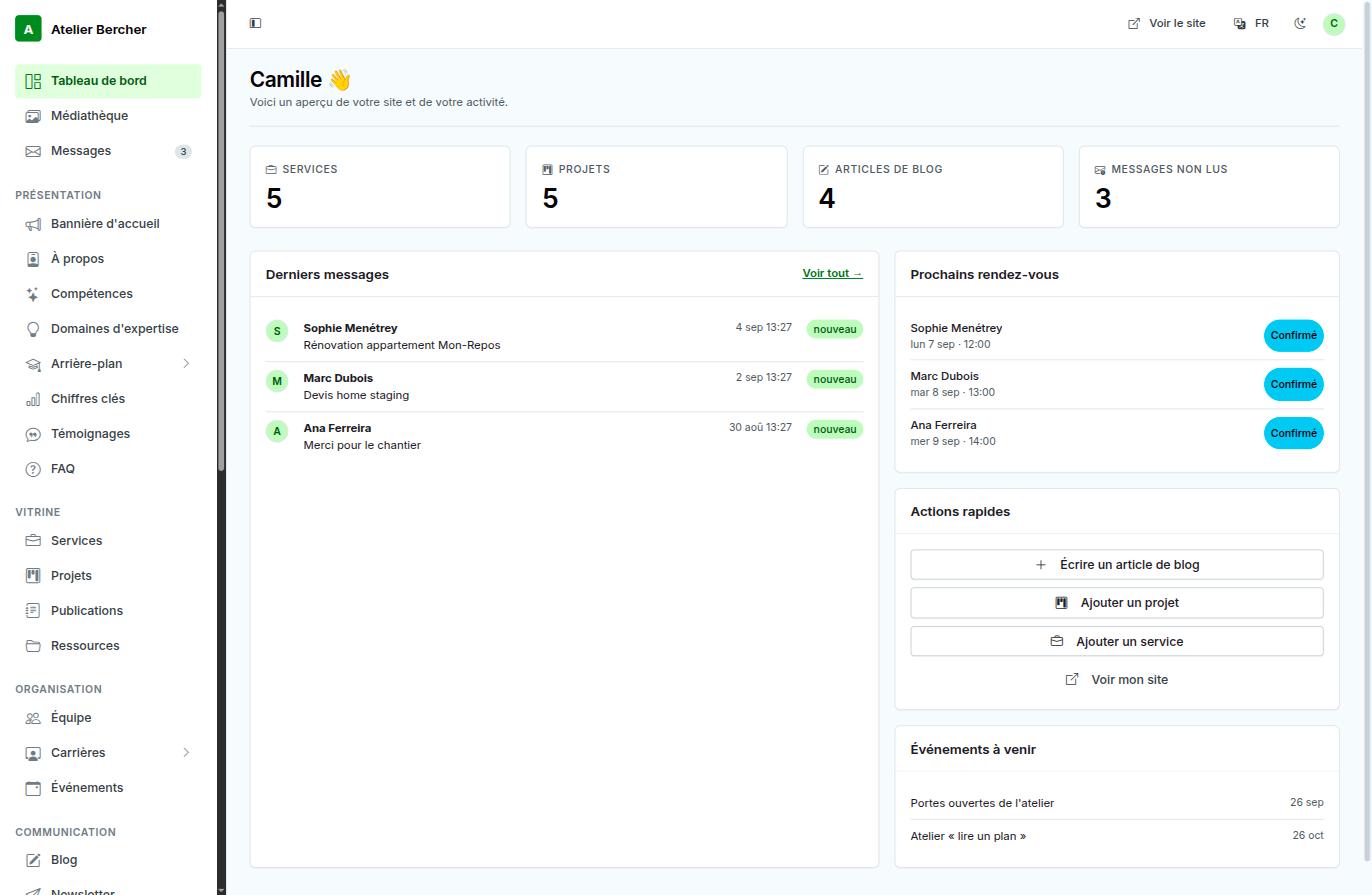
The console dashboard: counters, latest messages, upcoming appointments and four quick actions.
Counters at the top, then what actually needs you: the latest messages, the next appointments, and four quick actions — write an article, add a project, add a service, view my site.

The left menu, in the order you work

Five groups, arranged the way a week goes rather than the way a database is built.

  • Dashboard, Media library, Messages — what you open every week.
  • Presentation — the home page: banner, about, skills, key figures, testimonials, FAQ.
  • Showcase — services, projects, publications, resources.
  • Organisation — team, careers, events.
  • Communication — blog, newsletter, and the settings.

Every content screen has the same shape
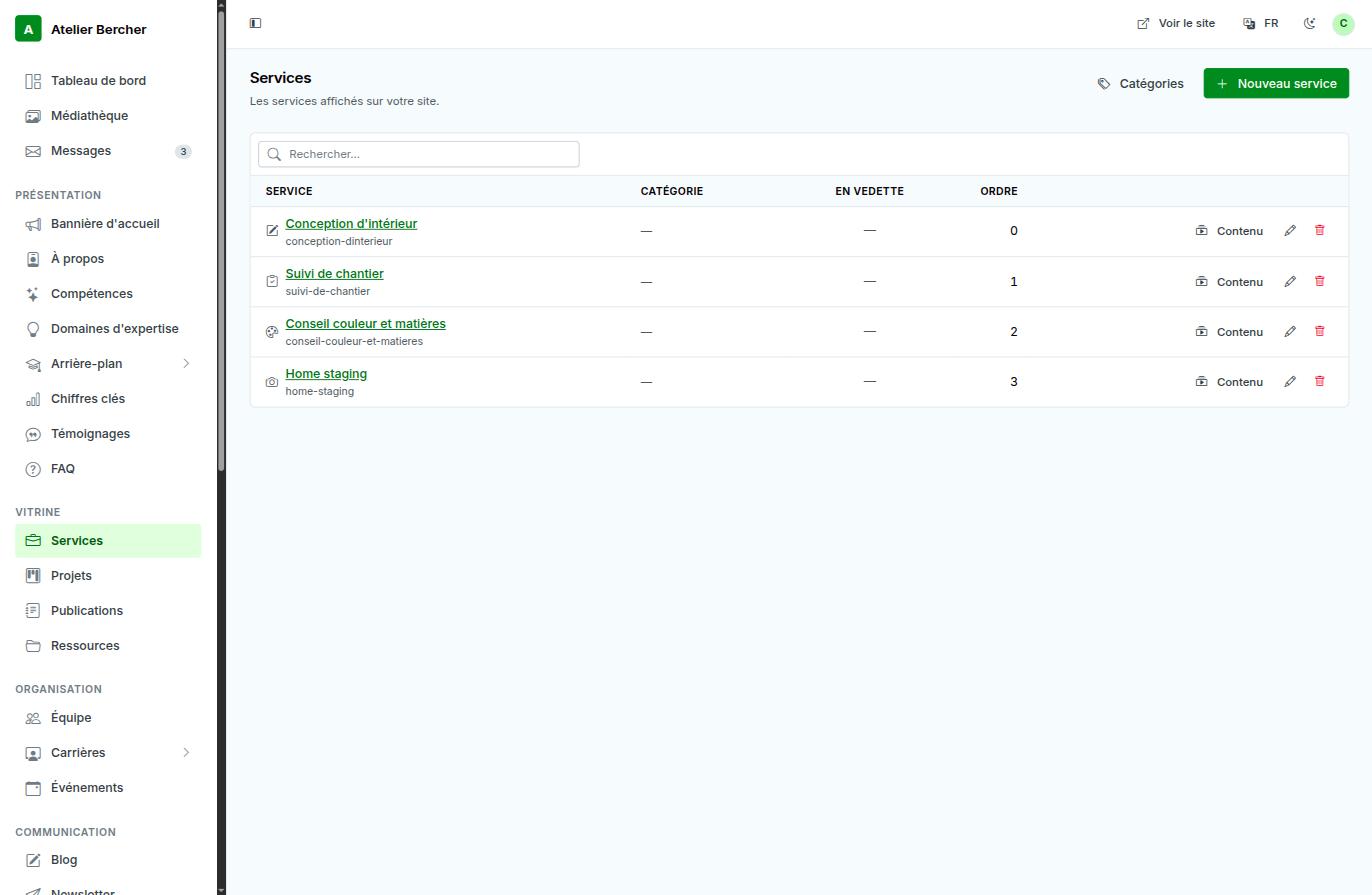
The Services list: search, then columns for category, featured and display order, with edit and delete actions.
Services, projects, articles, team: always a list with a search box, the display order, and the same two actions at the end of each row. Learn one, you know them all — see Adding a service.

Your images live in one place

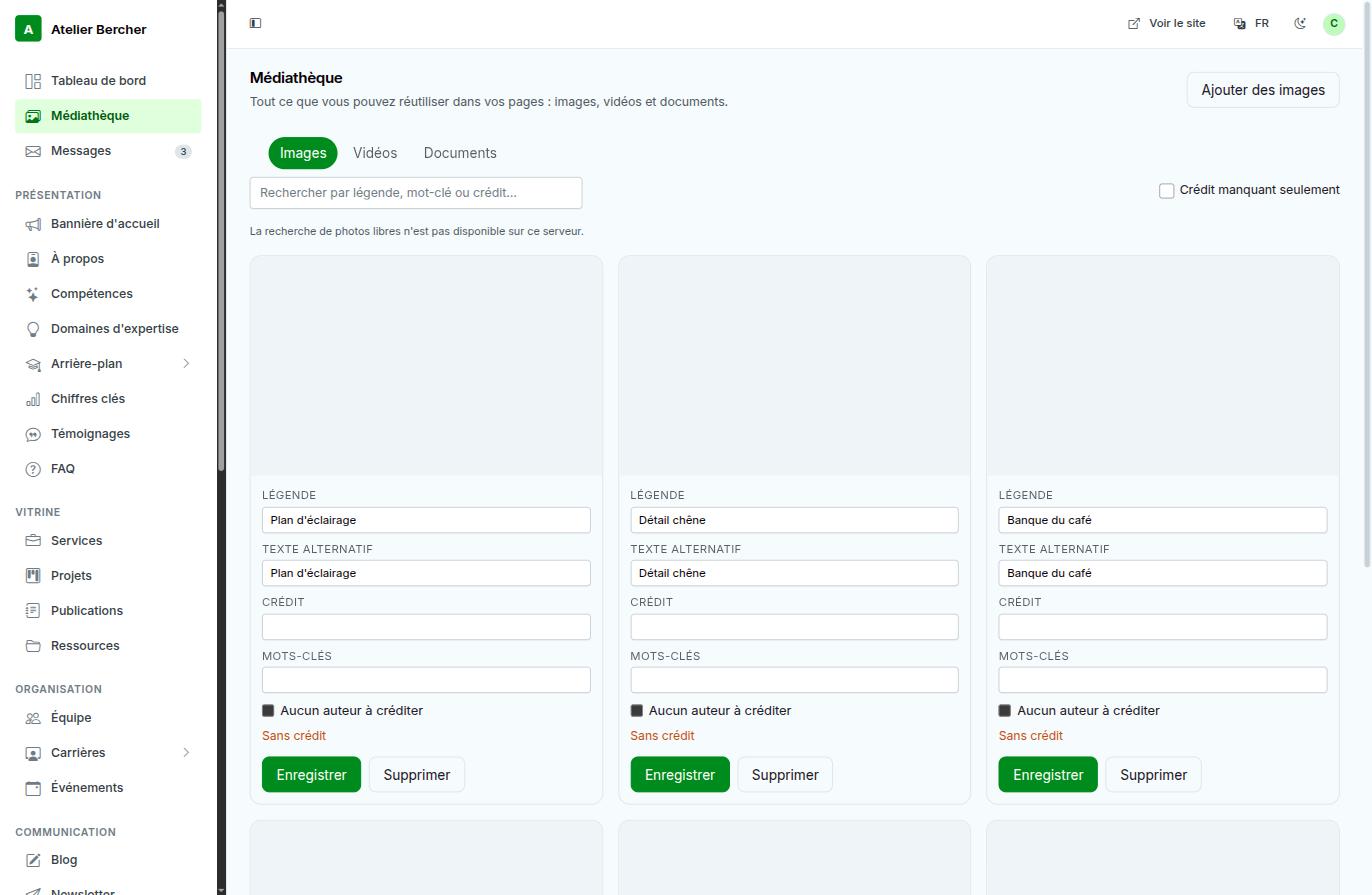
The media library: Images, Videos and Documents tabs, with caption, alternative text, credit and keywords under each image.
Anything you insert while writing lands here, so a photo used on three pages is stored once. Details in The media library.

What your site sends back to you

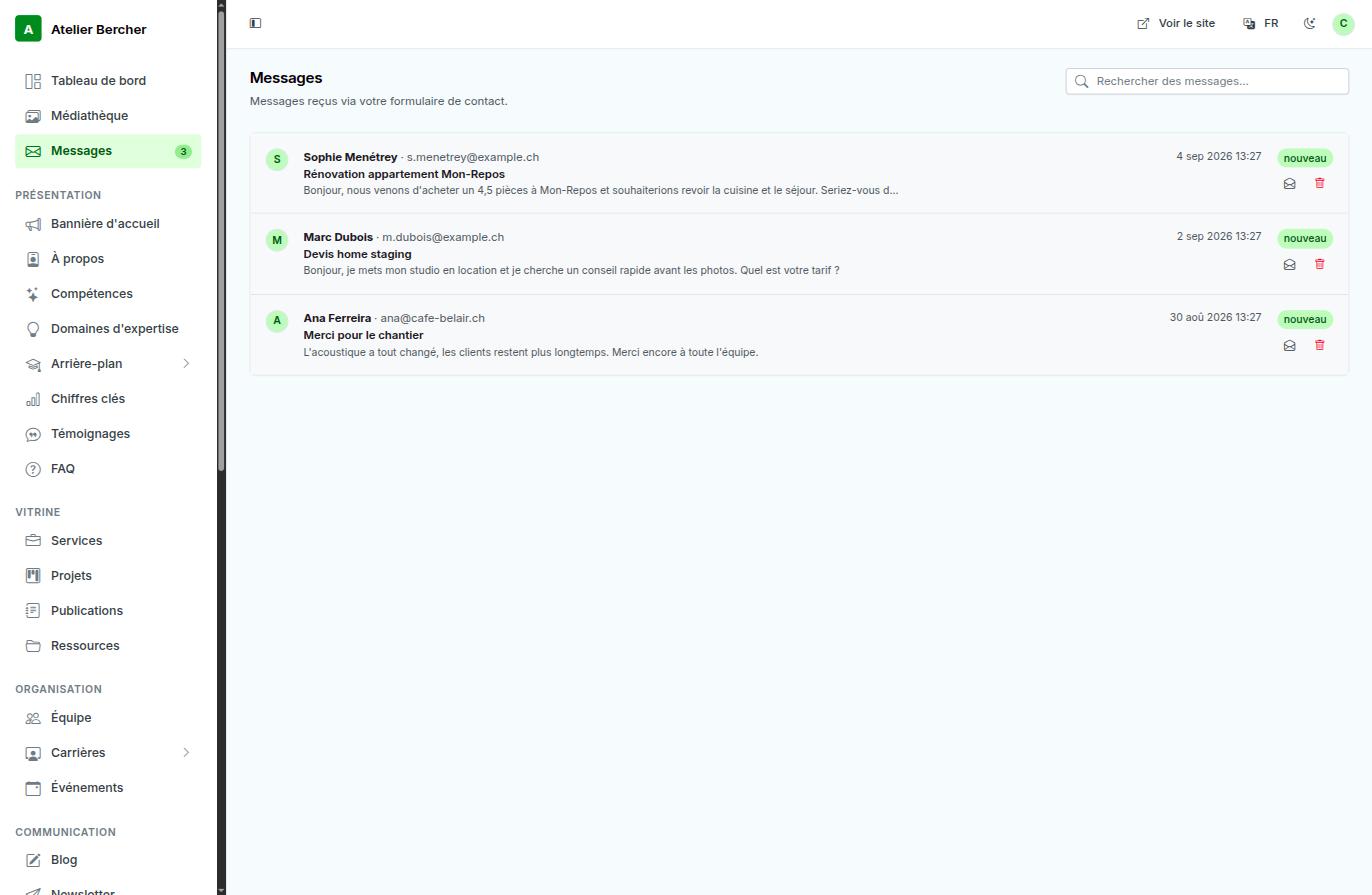
The Messages screen: sender, subject, excerpt, date and a new badge.
Every message from your contact form arrives here and stays, even if an email notification is lost. See The messages your site receives.

Changing how the site looks

The theme gallery: each card previews a theme with your own content, with Preview and Activate buttons.
Settings → Theme & appearance. Each card shows the theme with your content. Activating one changes the clothes, never the content.

What you have switched on

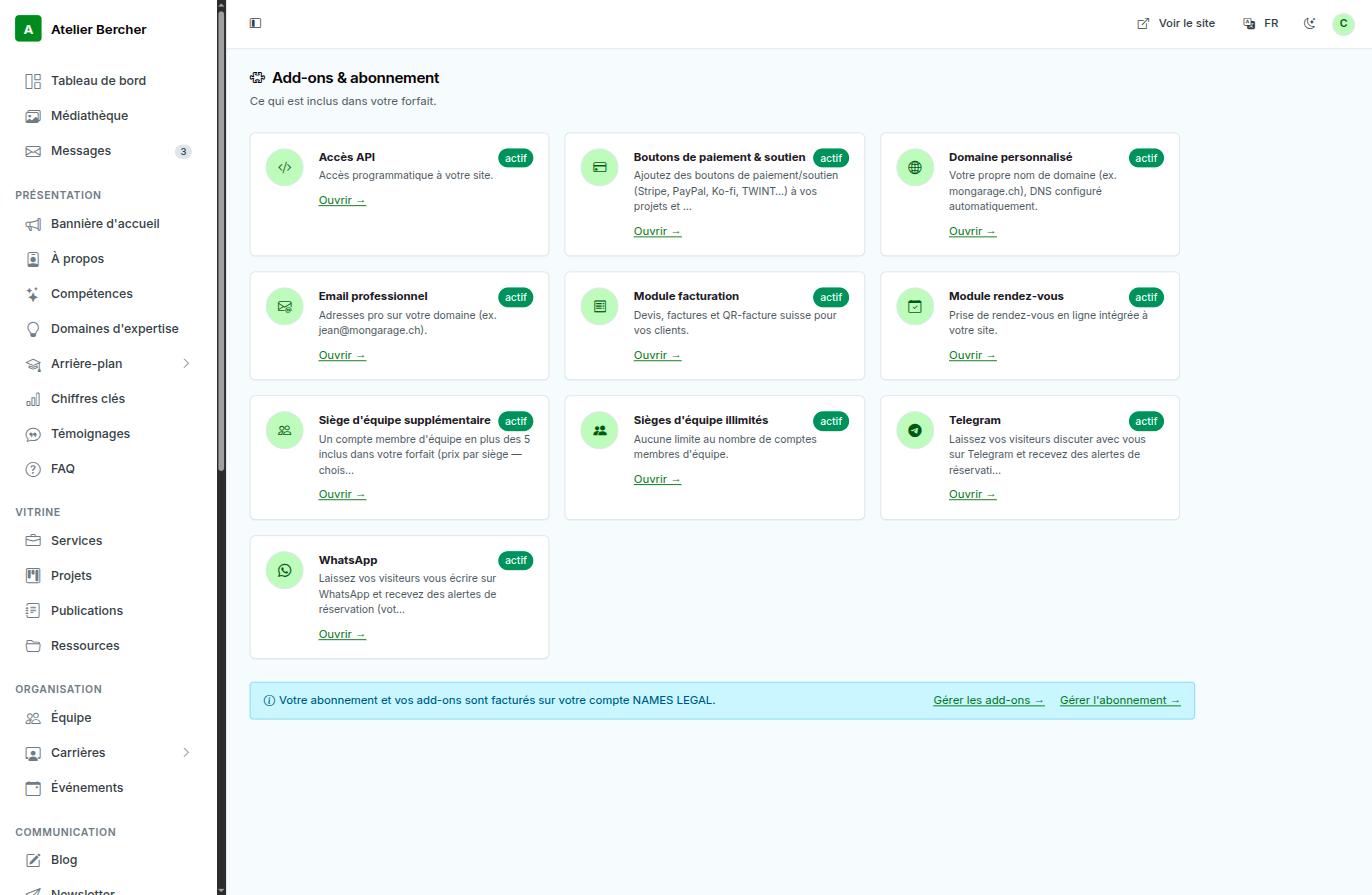
The add-ons screen: one card per add-on with an active badge and a link that opens the module.
One card per add-on, and a link into each module. Which one to turn on, and when: Add-ons.

Three levels of access

If you invite someone, choose the level deliberately — it is easier than undoing it later. Editor covers the content of the site and nothing that costs money; Admin adds invoicing, domains, email, add-ons and settings; Owner is your account, and the only one that manages the team. An accountant needs Editor at most — see Your team.

The View site link at the top right opens your public site in a new tab. Use it after every change: what you see there is what your visitors see, and it is the only judge that counts.